Welcome to the NeuroJournal Wiki
This wiki walks you through everything you need to run your own EEG study with NeuroJournal, step by step. Work through it in order if you're just getting started, or jump straight to the page you need using the menu on the left.
What is NeuroJournal?
NeuroJournal is a researcher tool created by Axite (axitetech.com). At Axite we work on creating solutions for mobile EEG monitoring using already available EEG hardware. Currently, NeuroJournal supports pairing with the Muse S Athena from Interaxon (choosemuse.com), but we are actively working on compatible pairing with the BrainBit (Pro) headband (brainbit.com).
The two components
With a NeuroJournal subscription, you have access to the two tools you need to completely set up, run, and analyse EEG data using a Muse headset. There are two components to the tool:
1. Researcher Dashboard
- Store recordings
- Manage participant information
- Generate a unique QR code / participant ID for each participant
- Download pre-processed EEG recordings
- Visualise data
2. Participant App
- Android app, downloadable via the Google Play Store
- Pairs with the Muse headset
- Records EEG sessions
- Automatically uploads recordings to the dashboard
The Headset
NeuroJournal pairs with a Muse S Athena (from Interaxon) to record raw EEG data from your participants. We're actively working on compatible pairing with the BrainBit (Pro) headband as a second supported option.
Muse S Athena at a glance
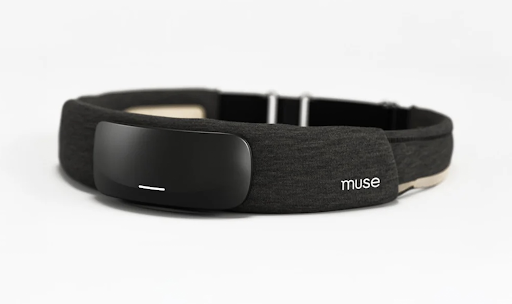
Muse S Athena device
- EEG channels: 4 EEG channels (AF7, AF8, TP9, TP10) plus 4 amplified auxiliary channels, all referenced to FPz
- Sample rate: 256 Hz, 14 bit resolution per sample
- Additional sensors: PPG heart rate (triple wavelength, 64 Hz), fNIRS (5 optode, frontal cortex, 64 Hz), plus a three axis accelerometer and gyroscope
- Battery life: Up to 10 hours per charge
- Connectivity: Bluetooth LE 5.3, paired directly through the NeuroJournal app
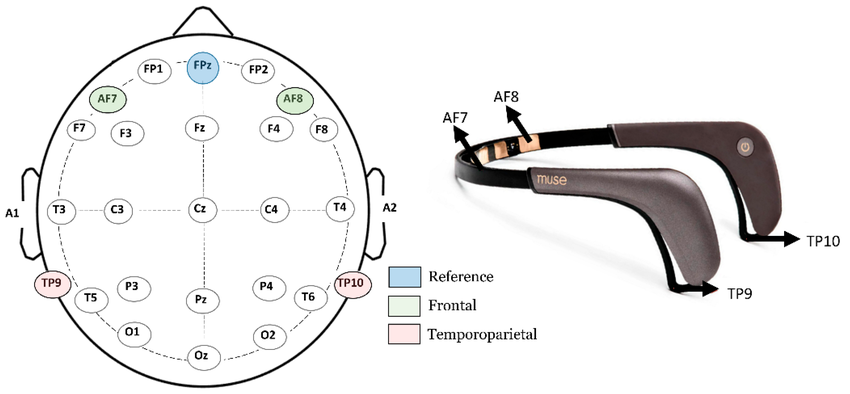
Older Muse device, example for electrode placement.
Image source: Tripathi & Kumar Sharma, 2023.
Disclaimer
For research use only. NeuroJournal and the Muse S Athena measure and report on brain activity. They do not diagnose, treat or provide any medical determination, and any clinical decisions should be made by a qualified professional, not from NeuroJournal data alone.
Already own a Muse?
If you already have a Muse S Athena, you're all set — skip ahead to Subscription & Pricing.
Don't have one yet?
No problem — you can buy a Muse S Athena through our affiliate link and get 15% off.
Buy via our affiliate link (15% off) →Subscription
NeuroJournal is a paid subscription service. To find out about the pricing models, go to our webpage (neurojournal.io). A monthly subscription gives you access to two tools: the Participant Smartphone App, and the Dashboard for data storage, analysis, and export.
Participant Smartphone App
Unlimited downloads on participant mobile devices. The NeuroJournal smartphone app is available for download via Google Play on Android devices. Participants will require a link generated by the researcher to sync their account to the dashboard.
Dashboard for data storage, analysis, and export
Limited up to 20 hours per month on basic subscription.
Want to analyse your own data?
No problem, you can download raw data as a .csv from the dashboard.
Need more recording hours?
Visit our website (neurojournal.io) to find out about higher usage tiers.
Setting Up Your Account
Payment
Once you have paid for your subscription plan via Stripe, you will receive a confirmation email in your inbox.
Didn't receive an email? Check your spam folder, or contact support at support@axitetech.com.
Setting up the dashboard
After payment, you will be automatically forwarded to the dashboard registration page. Using the same email address provided to Stripe, you may now set up your personal researcher dashboard.
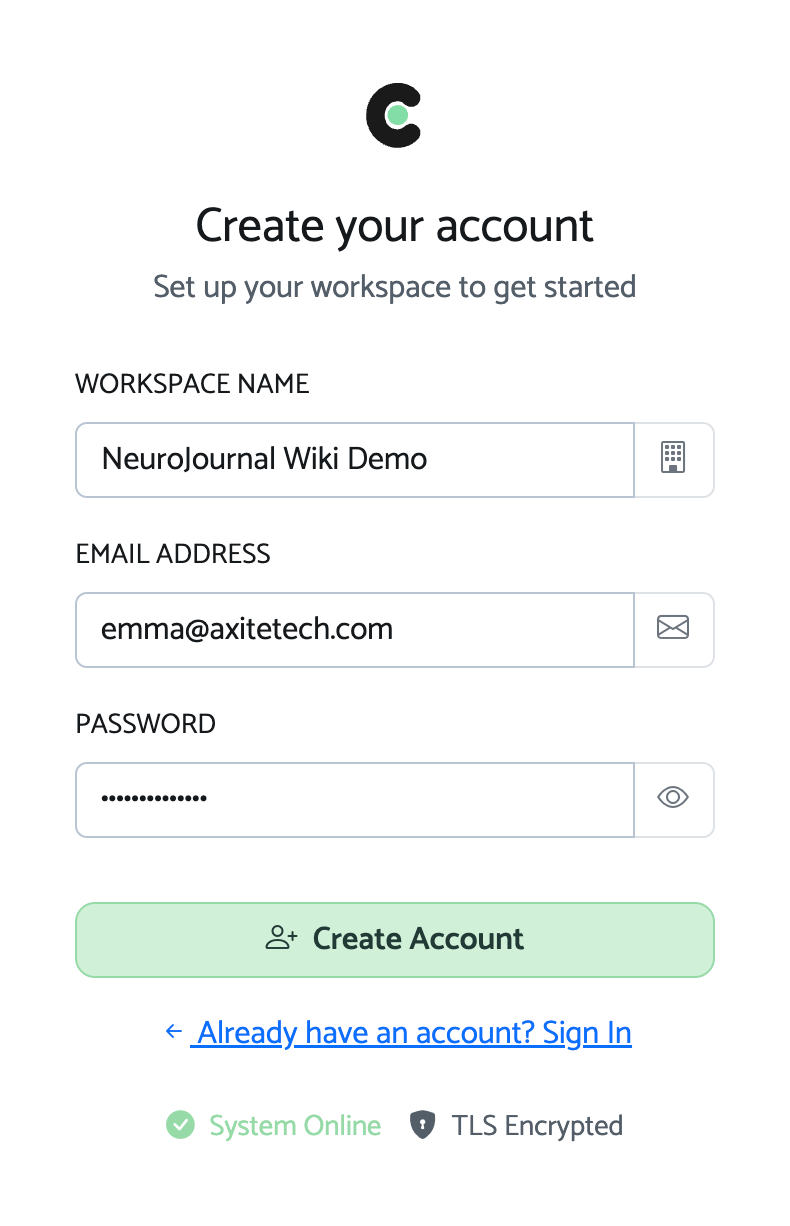
Registration page
Confirming your account
After registering, you'll receive a confirmation email. Open it and confirm your account before continuing.
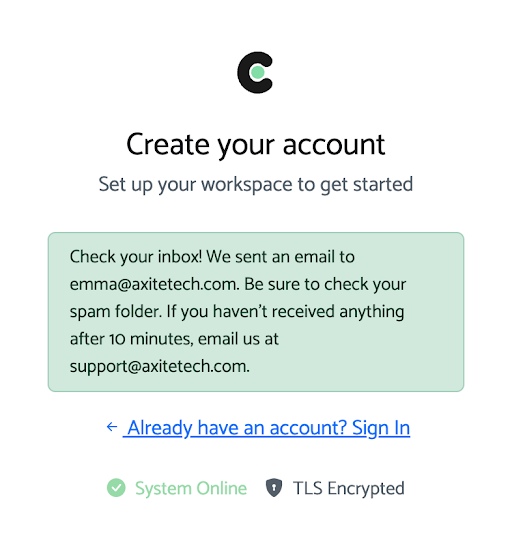
What you'll see right after registering
Setting up two factor authentication
To log in to your dashboard, you'll also need to set up two factor authentication (2FA). Any authenticator app works, for example Google Authenticator, Authy, or 1Password. Scan the QR code shown during setup with your chosen app, then enter the code it generates to confirm.
Creating a Study
- Click "New study"From your dashboard home screen.
- Name your studyThis is what you'll see listed on your dashboard — participants never see it.
- Set your recording parameters[e.g. session length, number of sessions per participant]
- SaveYour study now appears on your dashboard, ready for participants.
Prefer to watch instead? See the video walkthrough on the Video Tutorials page.
Inviting Your Participants
Every participant starts as an entry in your study's participant list. From there, you can generate a unique ID for them and send a ready made invite email in just a few clicks.
Open your study
From the study overview, select the study you'd like to invite participants for and click View study.
Manage participants
On the study page, click Manage inactive participants to see everyone who hasn't registered yet or been assigned a QR code. From here, click Add participant to generate a new participant ID, which appears as its own row, ready to invite.
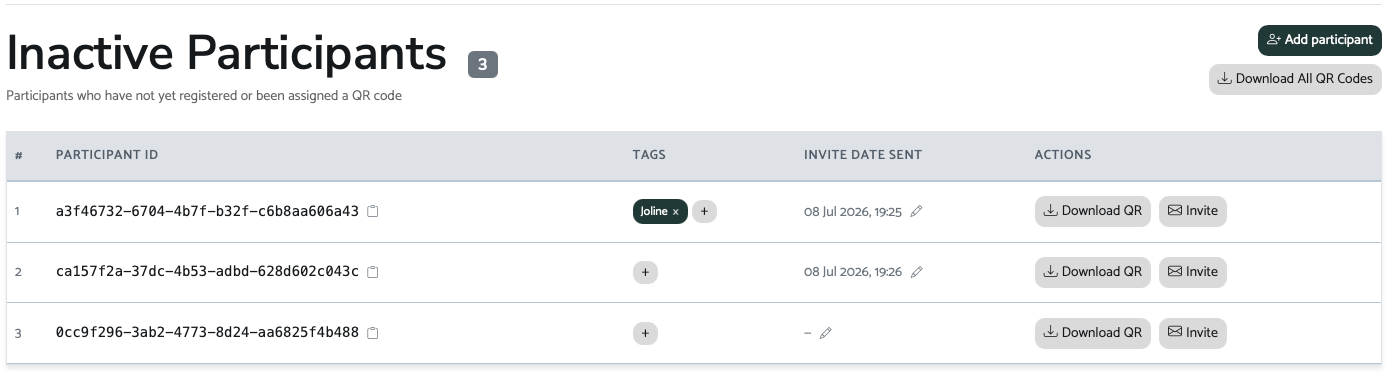
The participant list, with Add participant in the top right
Send the invite
Click Invite next to a participant's row to open the invite email window. You can adjust the subject and message before sending, and switch between English and Dutch. NeuroJournal attaches that participant's QR code to the email automatically, and doesn't save their email address once it's sent.
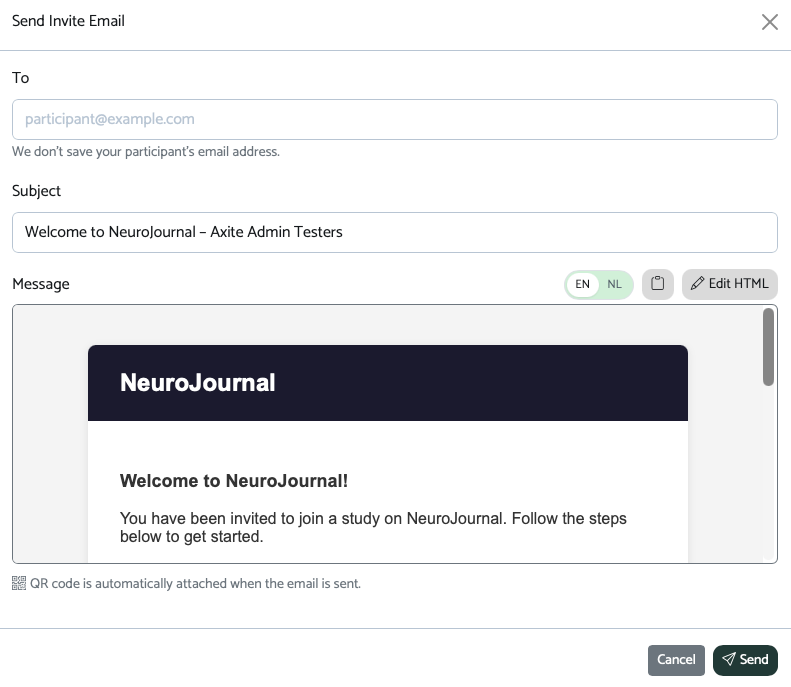
The invite email window, ready to send
What the participant receives
The email walks them through installing the app and joining the study, with their personal QR code attached and their participant ID included as a backup if they'd rather enter it manually.
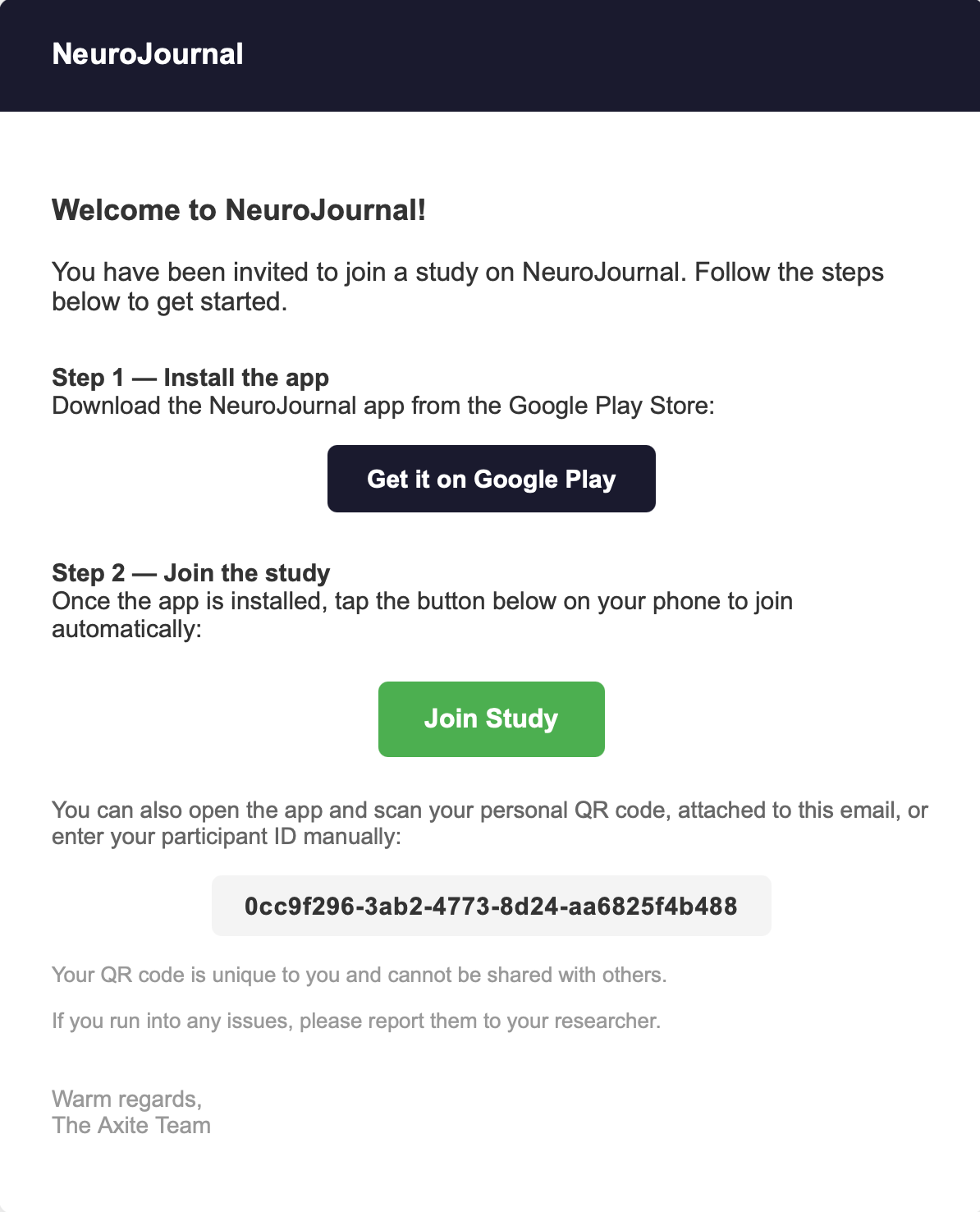
The invite email as the participant sees it
Prefer to watch instead? See the video walkthrough on the Video Tutorials page.
Viewing Participant Data
Every participant has their own page, opened from Manage participants. It brings together their details, a quick overview of their recording activity, and every individual session.
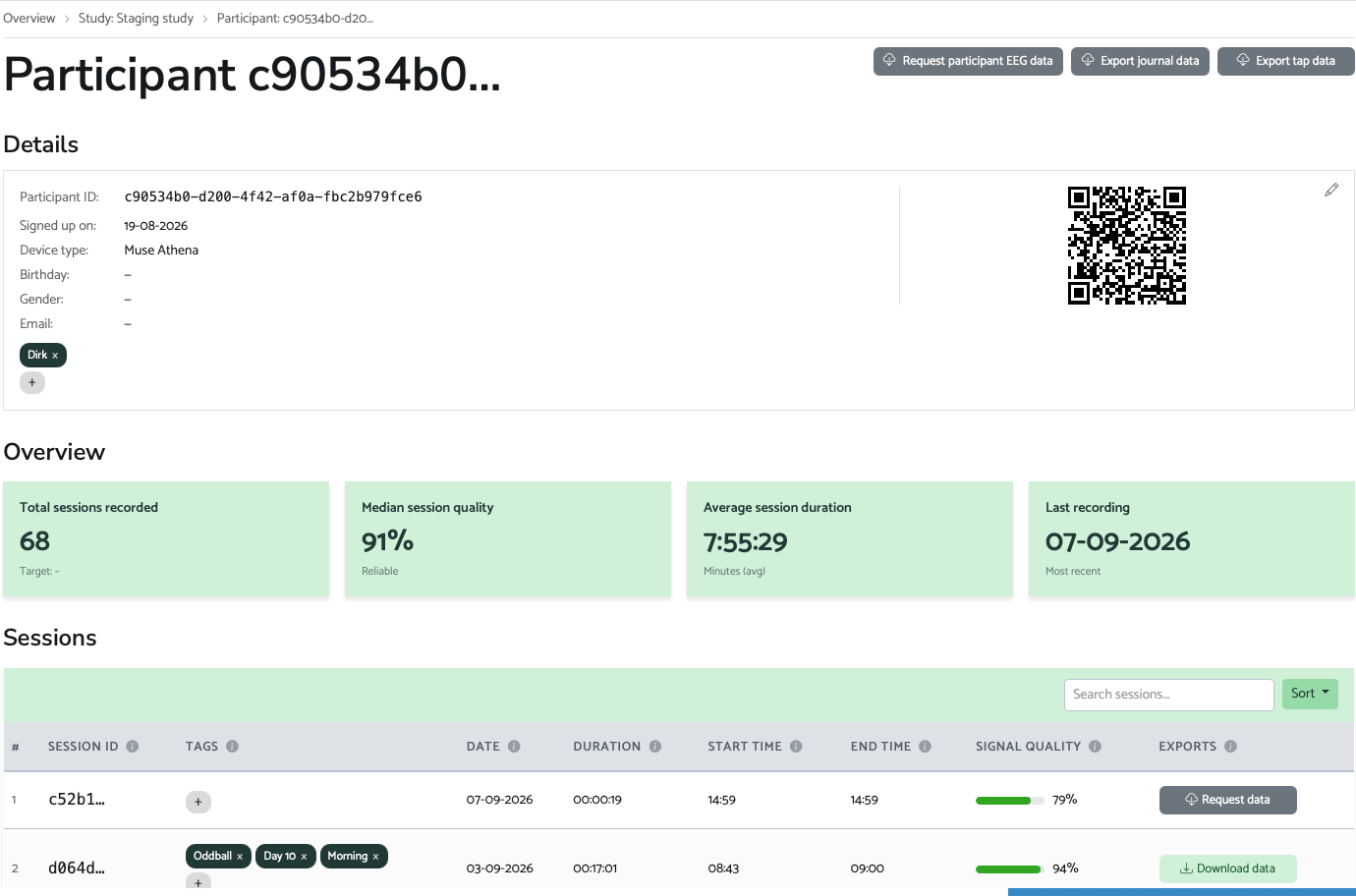
A participant's page: details, overview, and their session list
The Details card shows the participant ID, signup date, and device type, along with any tags you've added, useful for marking things like who recruited them or which cohort they belong to. The Overview strip gives a quick health check at a glance: total sessions recorded, median session quality, average session duration, and their most recent recording. Below that, the Sessions table lists every individual recording, each with its own signal quality score, tags, and an export action, either Download data or Request data depending on the session, more on that distinction on the Exporting Data page.
Signal Quality & EEG Features
Opening a session gives you several different views into the recorded signal, from the raw waveform through to processed brain wave activity and physiology.
Raw EEG
Each of the four channels, TP9 and TP10 behind the ears, AF7 and AF8 at the front, is plotted separately with its own Good or Poor signal quality badge, so you can spot a bad electrode at a glance before digging further.
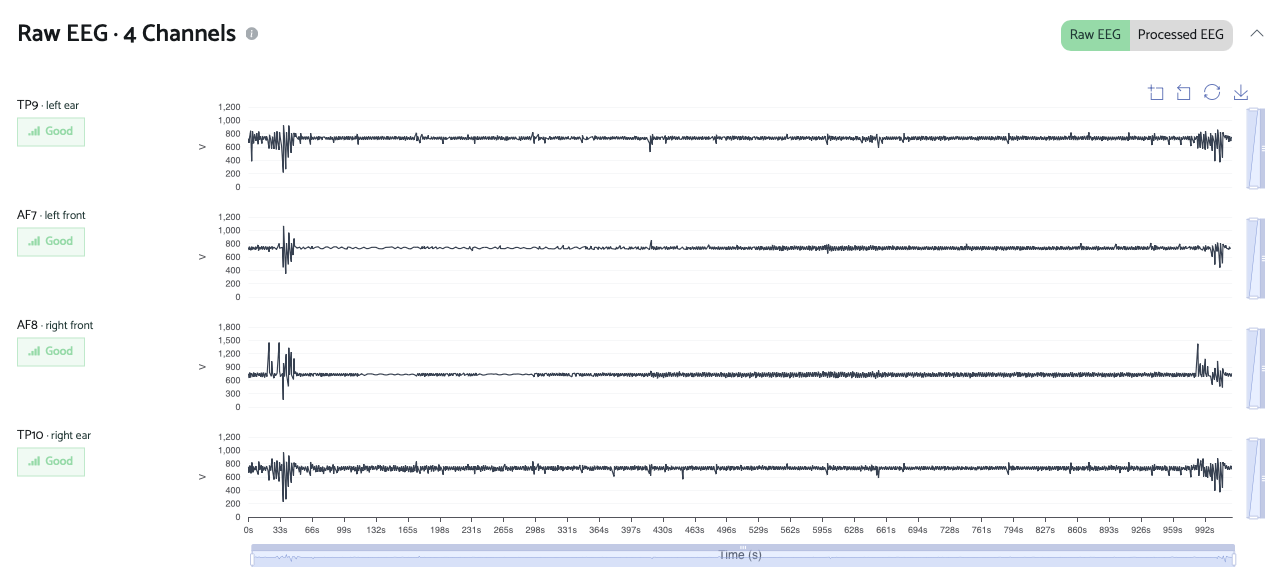
Raw EEG, per channel, with a quality badge for each
Processed EEG
The processed view steps through the recording window by window, flagging any window with poor signal quality directly on the chart so you can see exactly where in the session the data is less reliable, rather than only getting one quality score for the whole session.
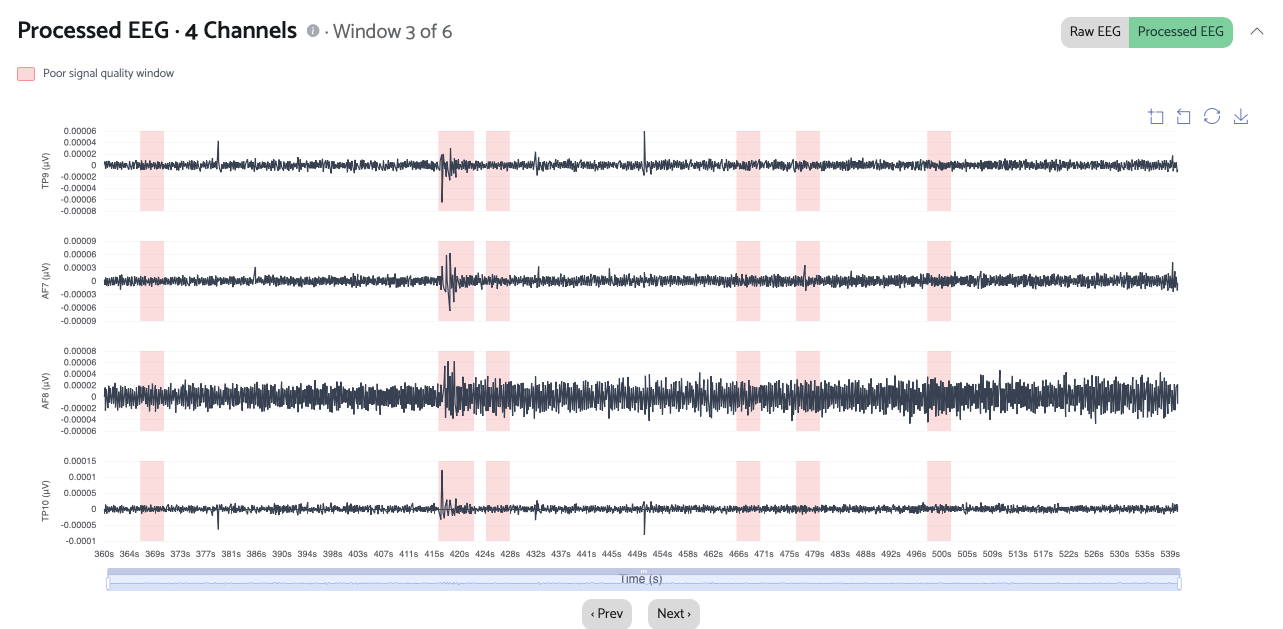
Processed EEG, paged by window, with poor quality windows flagged
Spectrogram
Shows how power at each frequency changes over the course of the session, per channel, useful for spotting patterns that a single waveform trace won't make obvious.
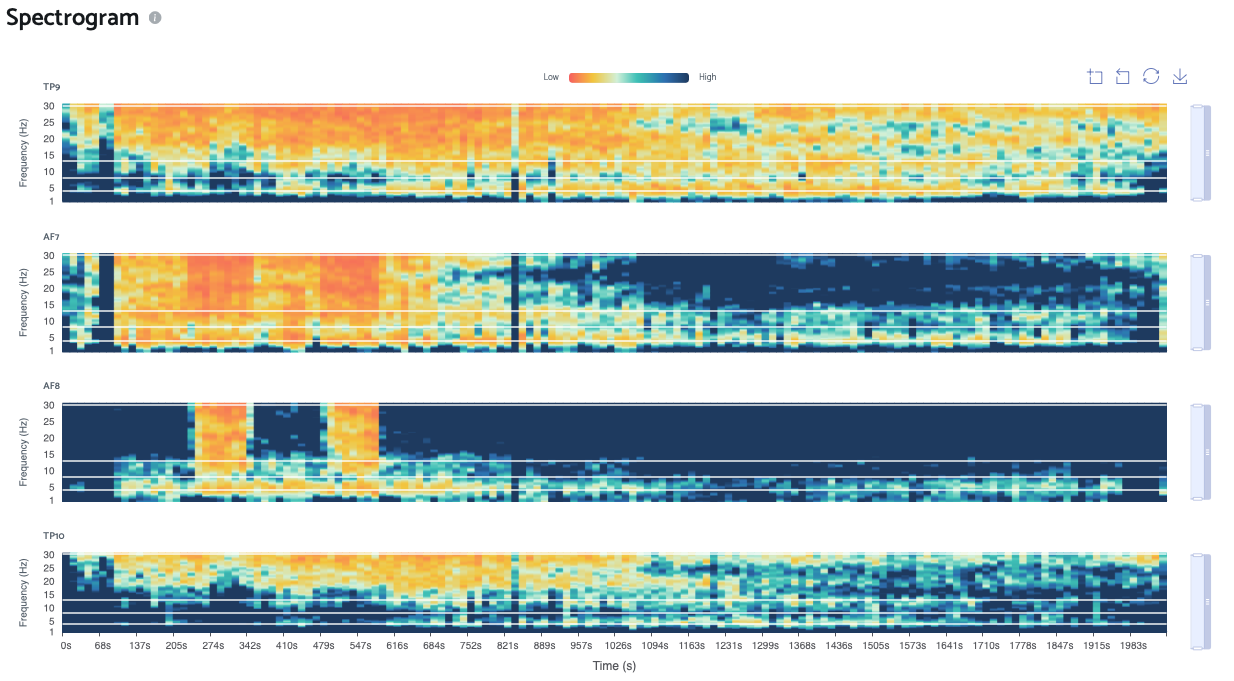
Spectrogram, per channel
Brain wave activity
Mean band power over time, broken into the standard frequency bands (delta, theta, alpha, and further bands below), selectable per channel, each with a trimmed mean for the session.
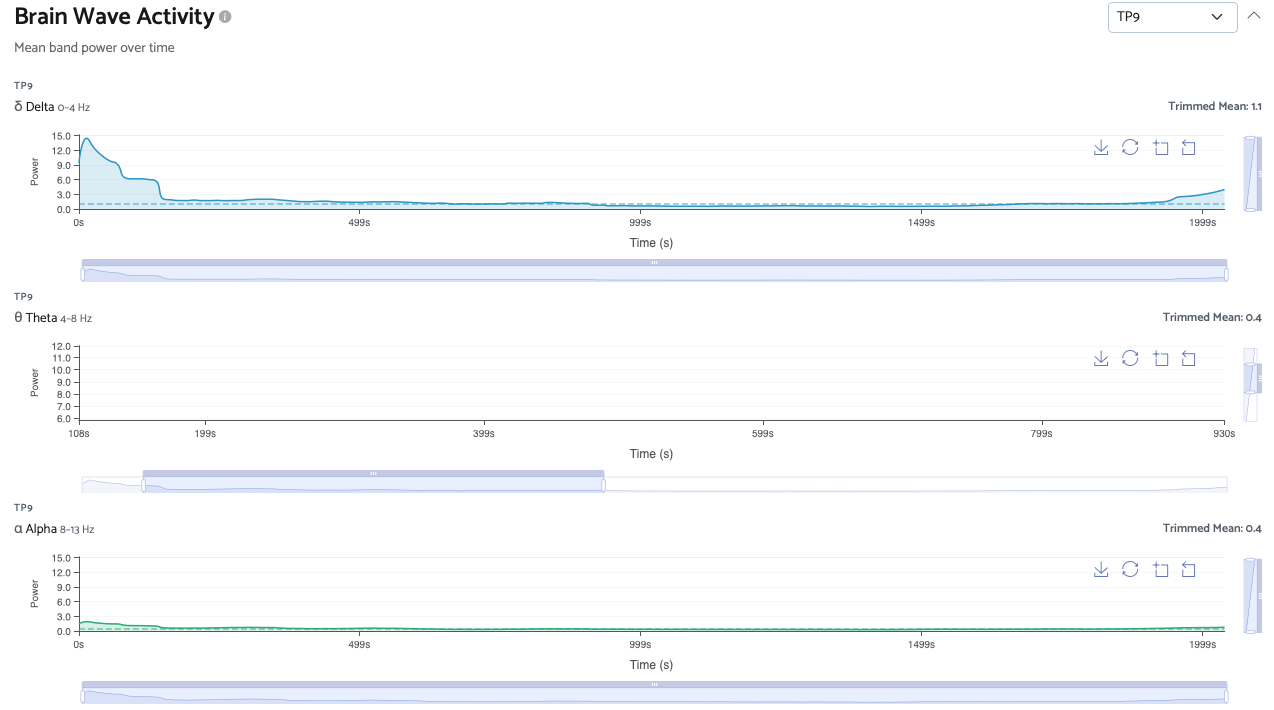
Brain wave activity, mean band power over time
Motion & physiology
Alongside the EEG signal itself, you can also review accelerometer, gyroscope, and heart rate (PPG) data for the same session, each with its own trimmed mean.
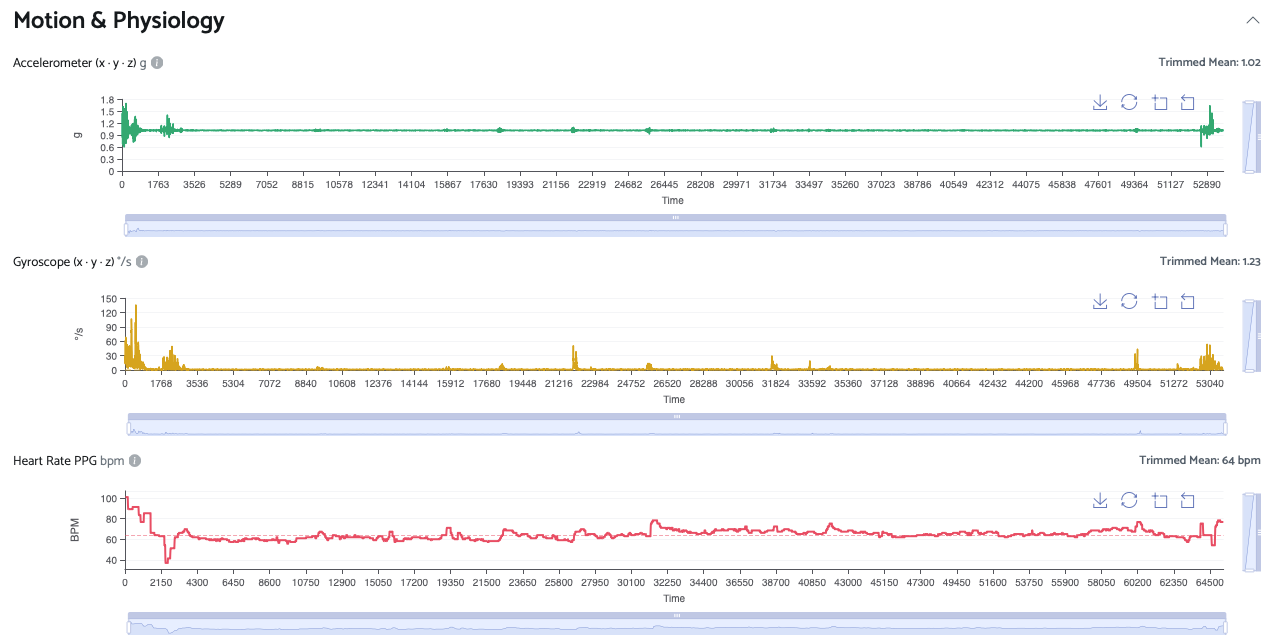
Motion and physiology: accelerometer, gyroscope and heart rate
Prefer to watch instead? See the video walkthrough on the Video Tutorials page.
Exporting Data
Data can be exported at a few different levels: a single session, everything for one participant, or specific data types across a participant's whole history.
Requesting vs downloading
Every EEG recording needs to be requested before it can be downloaded. A session shows Request data until that request has been fulfilled, at which point it switches to Download data. For a participant's full EEG history at once, use Request participant EEG data at the top of their page rather than requesting session by session. Journal entries (mood, stress, sleep and custom tags) and tap data (passive smartphone interaction patterns) are exported separately, using Export journal data and Export tap data.
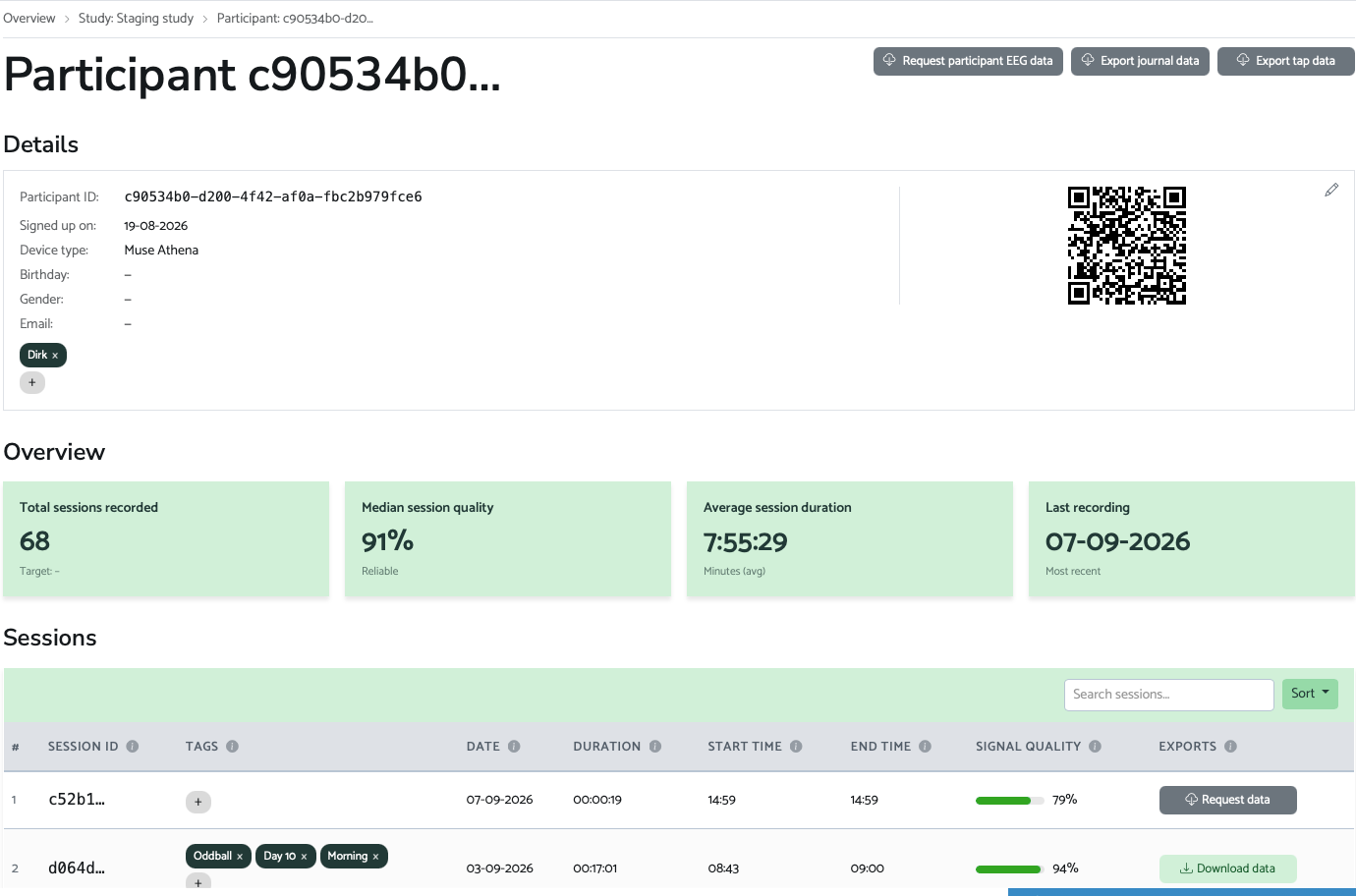
Request and download actions, at both the session and participant level
What a raw export contains
A single session's raw export isn't one file, it's five: separate CSVs for accelerometer, EEG, fNIRS, gyroscope, and an hsi file with headset signal information.

Five files from a single session export
Prefer to watch instead? See the video walkthrough on the Video Tutorials page.
NeuroJournal (app)
NeuroJournal is designed so participants can record their own EEG without a researcher present, so sessions can happen anywhere, including at home. It's included here so you can recognise what a participant is looking at if they ever reach out with a question.
Connecting the headset
Starting a recording prompts the participant to connect their Muse S Athena. Tapping the headset icon walks them through pairing.
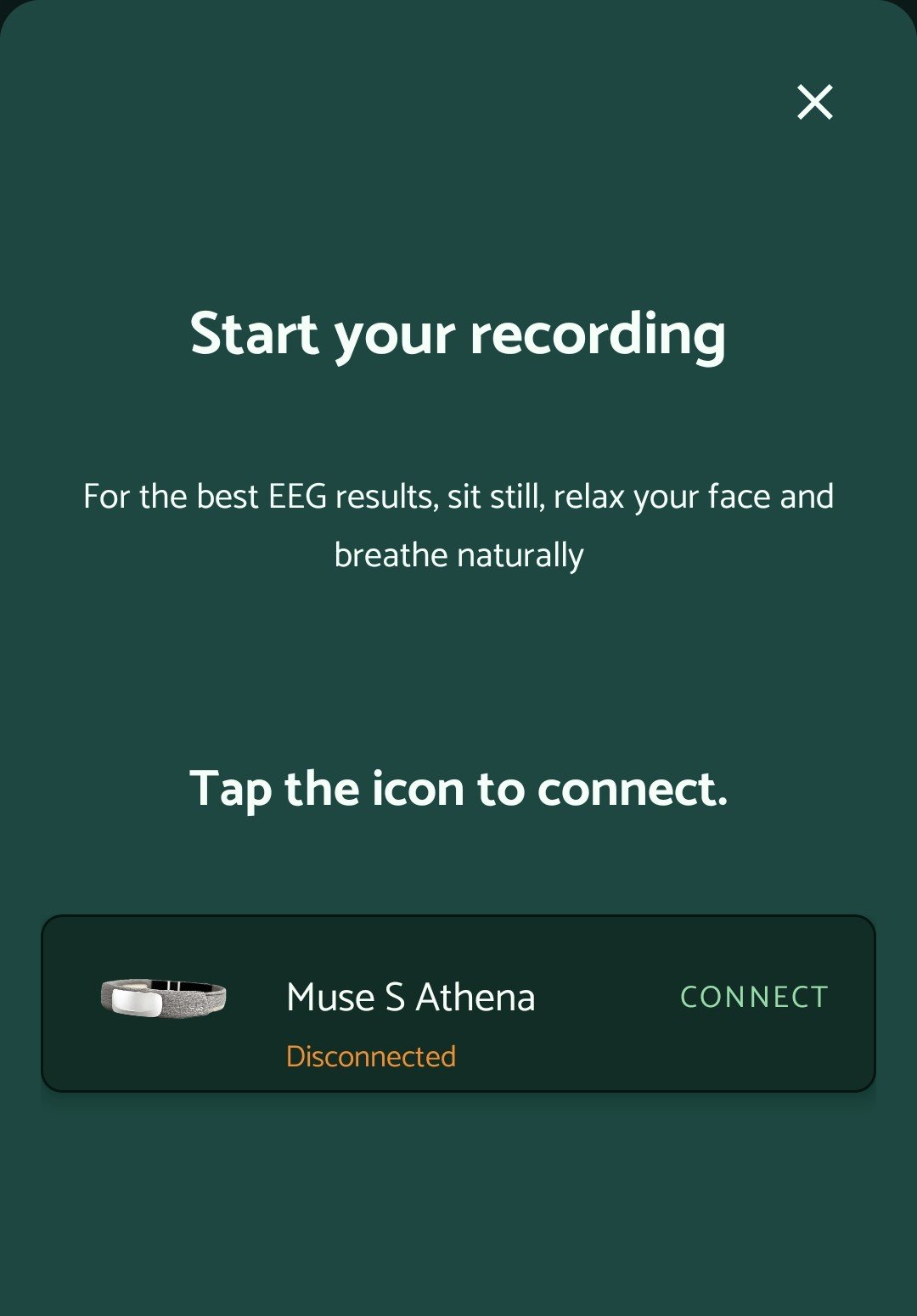
Tap the icon to connect
Checking signal quality
Once connected, the app checks each electrode automatically and signals connection quality using colour, along with quick tips if anything needs adjusting, like moving away from electrical outlets or turning off nearby electronics, the same advice we give in the FAQ.
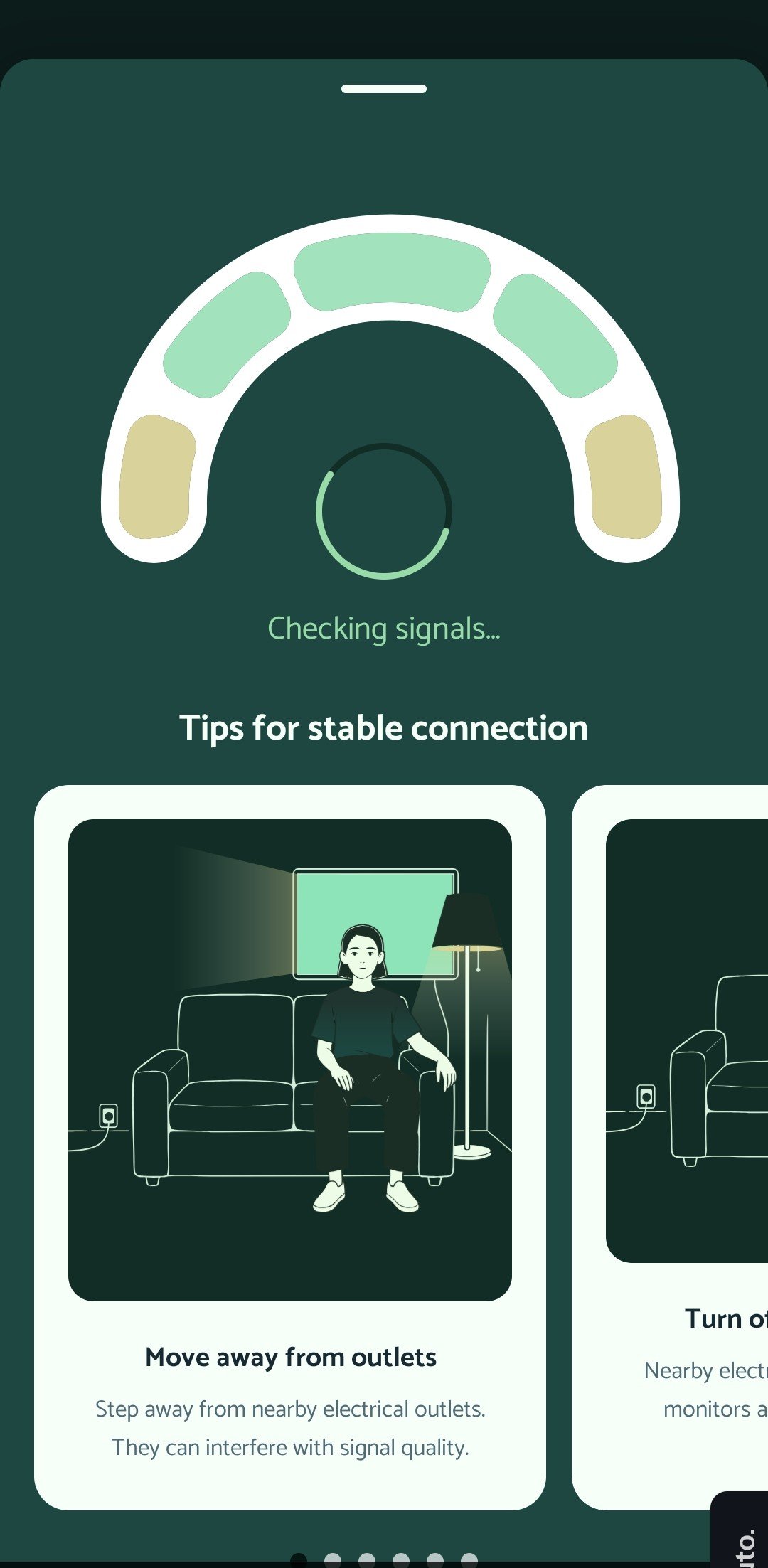
Checking signal quality, colour coded per electrode
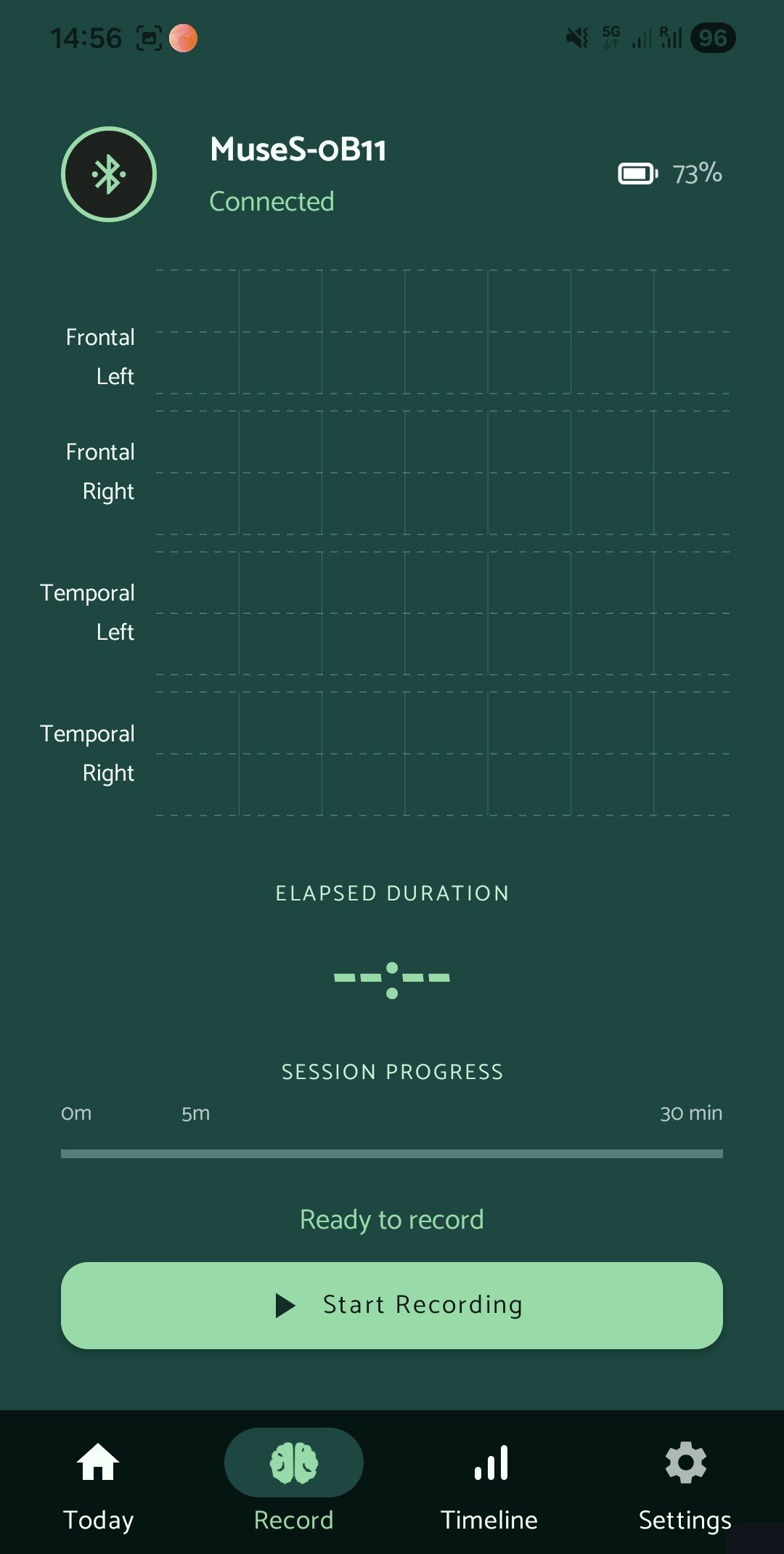
Ready to record
Once the signal check passes, the status changes to Connected and the app shows Ready to record, with battery level visible and the Start Recording button now active.
Connected and ready to record
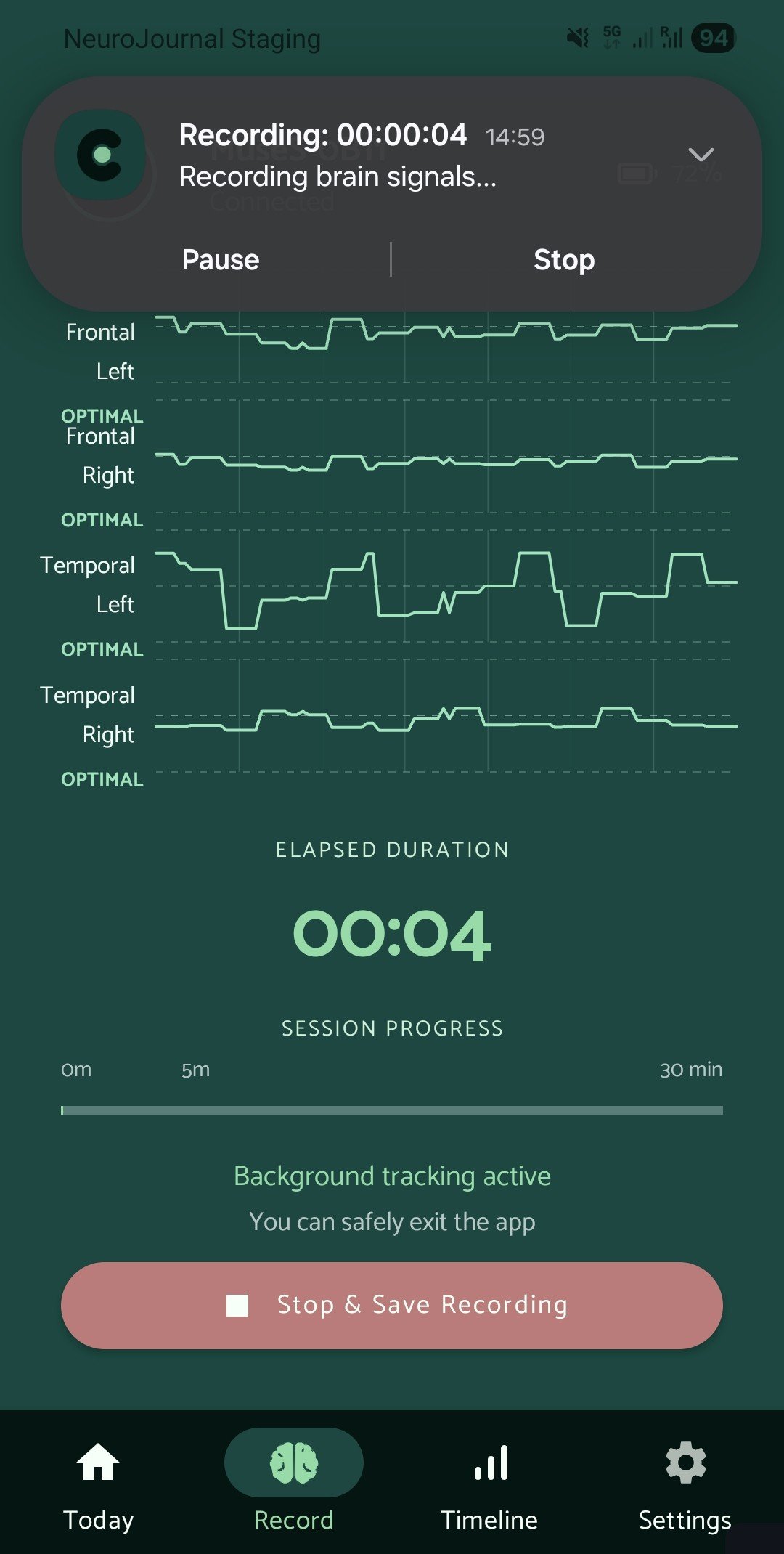
During a recording
While recording, participants see a live readout for each electrode, marked Optimal when the signal is stable, along with a running timer. They can lock their phone or switch apps since background tracking keeps the session going, and can stop and save whenever they're done.
A recording in progress, with live signal per electrode
Video Tutorials
FAQ
Getting Started
Do I need any technical or EEG background to use NeuroJournal?
I just paid. What happens next?
My dashboard is empty. Is that normal?
I didn't get a confirmation email for account setup. What should I do?
Devices & Compatibility
Which headset does NeuroJournal support?
Do you supply the headset, or do I need to buy my own?
Do participants need an Android phone?
Can participants use their own headset if they already own one?
Studies & Participants
How do I create my first study?
How do I invite participants?
What information does a participant see when they join?
Can I remove a participant mid study?
Troubleshooting & Data Issues
My participant says they recorded, but I don't see their data. What's going on?
If the connection drops during an active recording rather than afterward, unfortunately that session's data is lost and can't be recovered. It's worth reminding participants to check they have a stable connection before starting a recording, rather than only checking once they're done.
A participant had a failed or low quality recording, followed by a good one. Do I need to do anything?
A participant's signal quality is consistently low. What should I tell them?
Data & Exports
Do you process the data for me, or do I have to do that myself?
Which formats can I export data in?
What exactly gets recorded during a session?
How long is my data stored?
Data Privacy, Security & Medical Use
Who can see my participants' data?
Is NeuroJournal a medical device?
How is participant data kept secure?
Billing & Plans
What's the difference between monthly and yearly billing?
What happens if I need more recording hours than my plan includes?
The pricing page mentions prices will increase. When?
Can I switch plans later?
How do I cancel?
Still stuck? Email us at support@axitetech.com and we'll get back to you. We typically respond within one business day.
Referencing NeuroJournal
If NeuroJournal contributed to your research, please cite it as software:
Axite B.V. (2026). NeuroJournal [Computer software]. https://neurojournal.io